If your pharmacy has stopped ordering your repeat prescriptions because of Patient-Led Ordering, the NHS App is the easiest way to take it over yourself. Here is exactly how, from a standing start.
You will need a smartphone or tablet, an email address, and something to prove who you are. Photo ID — a passport or driving licence — makes it much quicker, but there are other routes if you have neither.
Set aside about ten minutes for the sign-up. You only ever do this once. Ordering afterwards takes under a minute.
Search for NHS App in the App Store on an iPhone, or Google Play on an Android phone. The official one is published by NHS England and is free. Be wary of imitations — the real one has the NHS logo and lists NHS England as the developer.
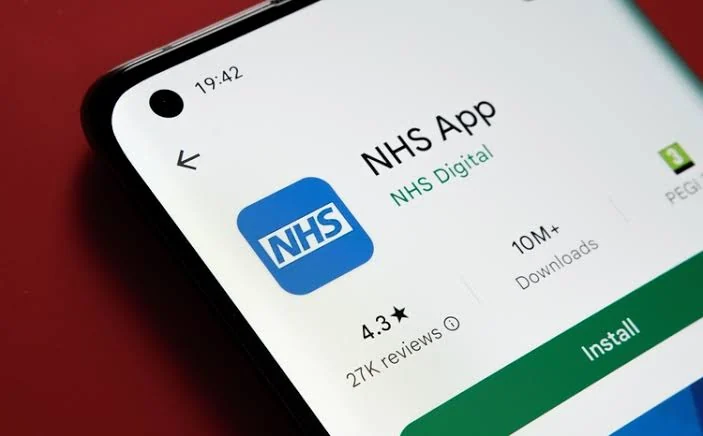
Open the app and follow the steps to set up an NHS login with your email address and a password. You will be asked to prove your identity, usually by photographing your ID and recording a short video of your face. It feels fussy, but it is what stops anyone else ordering your medication.
If you have no photo ID, the app offers alternatives, including having your GP surgery confirm your identity. Ask at your surgery reception if you get stuck here.
Once you are logged in, the app connects to your GP record. Sometimes this happens automatically; sometimes your surgery has to switch on access for you. If your prescriptions are not showing, that is almost always the reason — ring your surgery and ask them to enable online services on your record.
Tap Prescriptions or Request a repeat prescription. You will see a list of your repeat items. Tick only the ones you actually need, then send the request.
This is the important part, and the whole point of the change: tick only what you are running low on. Anything you already have plenty of, leave unticked. It stays on your repeat list and you can order it next time.
Two minutes. If you can use the NHS App we will note it; if you cannot, we will look at continuing to order for you.
Answer the questions →In the app, your nominated pharmacy is where prescriptions are sent electronically. Make sure it says Sandwell Pharmacy Group so we receive it, dispense it, and deliver it as we always have. If it shows a different pharmacy, you can change it in the app, or ask us and we will sort it.
Your prescription arrives with us electronically once your surgery signs it. We dispense it, a pharmacist checks it, and it goes out for free local delivery or is ready to collect. You will get a notification in the app when your surgery has issued it.
Plenty of people find it difficult, and that is not a failing. You can order through the NHS website on a computer instead, or through your GP surgery’s own online system.
And if none of it is realistic, there are recognised circumstances where a pharmacy can keep ordering on your behalf — see who is exempt from Patient-Led Ordering.
Or simply come in. We will sit down with you and set it up properly, on your phone, with someone next to you. Call your branch if you would rather ring first.
We use essential cookies to make the site work — things like your basket, sign-in and secure checkout. With your permission we’d also like to use analytics cookies to understand how the site is used and improve it. See our cookie policy.